[iOS - UI Custom] 9. 커스텀 클래스(UIControl상속) - UIStepper
* 형태
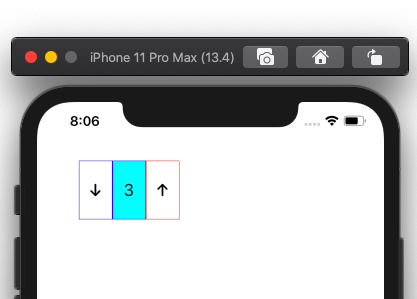
- UIControl을 상속 받아서, 그곳에 UIButton 두 개와, UILabel하나 추가
- (UIControl과 UIView 둘 중 하나를 상속 받아도 가능하지만 UIControl을 상속받으면 해당 객체에서 이벤트 발생하라고 명시해 줄 수 있음 , self.sendActions(for:)이용
[iOS - UI Custom] 1. UI 커스터마이징의 원리
1. 기본 용어 1) View Hierachy - view들 사이의 계층 관계가 존재 - Superview : 뷰의 계층 구조상 다른 뷰를 포함(가장 뒤에 있는 뷰) - Subview : Superview에 포함된 뷰(가장 앞에 있는 뷰) 2) 뷰의 구성 - Ro..
ios-development.tistory.com
1. 클래스 추가
- 지정 초기화 메소드 두 개와 뷰 크기 세팅을 담당할 "layoutSubViews()"오버라이딩
|
1
2
3
4
5
6
7
8
9
10
11
12
13
14
15
16
17
18
19
20
21
22
23
24
25
26
27
28
29
30
31
32
|
// CSStepper.swift
class CSStepper: UIControl{
// for storyboard
public required init?(coder: NSCoder) {
super.init(coder: coder)
self.mySetup()
}
// for non-storyboard
override init(frame: CGRect) {
super.init(frame: frame)
self.mySetup()
}
// for basis initializer
init(){
super.init(frame: CGRect.zero)
self.mySetup()
}
// CGRect변화시 호출되는 메소드 (프로퍼티의 CGRect정보를 여기에 기입해도 가능)
override public func layoutSubviews() {
super.layoutSubviews()
// set up property's CGRect
}
// custom realization
func mySetup(){
}
}
|
2. 프로퍼티 추가
1) 버튼 두 개와 레이블
|
1
2
3
|
var leftBtn: UIButton!
var rightBtn: UIButton!
var centerLbl: UILabel!
|
2) 버튼을 눌렀을 때 변하는 값을 가지고 있을 변수
- 버튼을 누른경우 다른 객체인 label에게도 알리는 방법 : 연산프로퍼티 중 didSet이용
|
1
2
3
4
5
6
7
8
|
var value: Int = 0 {
didSet {
self.centerLbl.text = String(value)
// value값이 바뀌면 sendAcionts(for:)인 valueChanged이벤트를 발생시키라는 의미
// ViewController.swift에서 CSStepper객체가 stepper이면,
// stepper.addTarget(self, action: #selector(printValue(_:)), for: .valueChanged)와 같이 사용.
//@objc func printValue(_ sender: CSStepper)에서 sender.value로 접근 가능
self.sendActions(for: .valueChanged)
}
}
|
※ self.sendActions(for:)의 의미 : 인자값으로 입력된 타입의 이벤트를 발생
- addTarget(self,action:,for:)의 의미 : for에 해당하는 이벤트가 발생하면 action에 있는 메소드를 실행시키라는 의미
즉, sendActions와 addTarget은 한 세트로 써야함
3. 버튼 두 개와 레이블 속성 정의
|
1
2
3
4
5
6
7
8
9
10
11
12
13
14
15
16
17
18
19
20
21
22
23
24
25
26
27
28
29
30
31
32
33
34
35
36
37
38
39
|
// CSStepper.swift
private func mySetup() {
self.leftBtn = UIButton()
self.rightBtn = UIButton()
self.centerLbl = UILabel()
self.leftBtn.tag = -1
self.leftBtn.setTitle("↓", for: .normal)
self.leftBtn.setTitleColor(.black, for: .normal)
self.leftBtn.titleLabel?.font = .boldSystemFont(ofSize: 20)
self.leftBtn.layer.borderWidth = 0.5
self.leftBtn.layer.borderColor = UIColor.blue.cgColor
self.rightBtn.tag = 1
self.rightBtn.setTitle("↑", for: .normal)
self.rightBtn.setTitleColor(.black, for: .normal)
self.rightBtn.titleLabel?.font = .boldSystemFont(ofSize: 20)
self.rightBtn.layer.borderWidth = 0.5
self.rightBtn.layer.borderColor = UIColor.red.cgColor
self.centerLbl.text = String(value)
self.centerLbl.font = .systemFont(ofSize: 20)
self.centerLbl.textAlignment = .center
self.centerLbl.backgroundColor = .cyan
self.centerLbl.layer.borderWidth = 0.5
self.centerLbl.layer.borderColor = UIColor.blue.cgColor
self.addSubview(self.leftBtn)
self.addSubview(self.rightBtn)
self.addSubview(self.centerLbl)
self.leftBtn.addTarget(self, action: #selector(valueChange(_:)), for: .touchUpInside)
self.rightBtn.addTarget(self, action: #selector(valueChange(_:)), for: .touchUpInside)
}
@objc func valueChange(_ sender: UIButton) {
self.value += sender.tag
}
|
* 코드 출처 : 꼼꼼한 재은씨의 스위프트 실전편