
Notice
Recent Posts
Recent Comments
Link
| 일 | 월 | 화 | 수 | 목 | 금 | 토 |
|---|---|---|---|---|---|---|
| 1 | ||||||
| 2 | 3 | 4 | 5 | 6 | 7 | 8 |
| 9 | 10 | 11 | 12 | 13 | 14 | 15 |
| 16 | 17 | 18 | 19 | 20 | 21 | 22 |
| 23 | 24 | 25 | 26 | 27 | 28 | 29 |
| 30 | 31 |
Tags
- combine
- 클로드코드
- uiscrollview
- Clean Code
- ios
- collectionview
- Human interface guide
- clean architecture
- HIG
- swiftUI
- claude code
- RxCocoa
- uitableview
- Xcode
- 리팩토링
- SWIFT
- UICollectionView
- Protocol
- tableView
- Observable
- 리펙토링
- rxswift
- 스위프트
- map
- swift documentation
- 애니메이션
- UITextView
- Refactoring
- 클린 코드
- MVVM
Archives
- Today
- Total
김종권의 iOS 앱 개발 알아가기
[iOS - SwiftUI] Sticky Header 구현 방법 (Sticky 헤더, List 사용) 본문
iOS 응용 (SwiftUI)
[iOS - SwiftUI] Sticky Header 구현 방법 (Sticky 헤더, List 사용)
jake-kim 2025. 12. 31. 01:15cf) LazyVStack해서 구현 방법 포스팅 글은 이 링크의 포스팅 글 참고: https://ios-development.tistory.com/1760

StickyHeader 구현 아이디어
- StickyHeader를 순수 직접 구현하려면 많은 작업이 들겠지만, SwiftUI에서 List안에 Section(header:)를 이용하면, 스크롤 시 자동으로 위에 걸쳐지는 효과를 사용하면 구현하기가 매우 쉬움
- 단, List의 속성에 .listStyle(.plain)을 해줘야 section으로 넣었던 UI들이 sticky header로 동작함
구현
- List 선언
struct ListStickyHeaderView: View {
    var body: some View {
        NavigationView {
List {- sticky header 위쪽에 위치할 뷰를 넣어주기
- 아래 사진에서 Top Content 부분
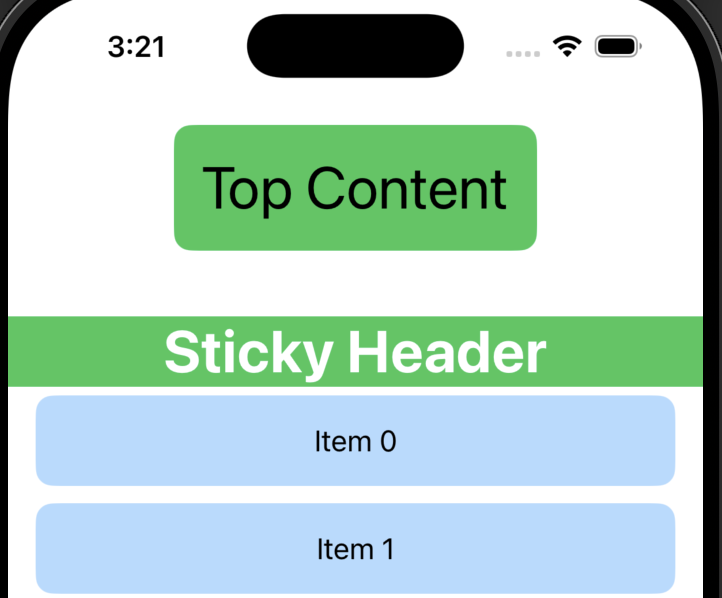
- VStack 안에 넣기
struct ListStickyHeaderView: View {
    var body: some View {
        NavigationView {
            List {
                // 1. 상단 콘텐츠 (Header가 고정되기 전 함께 스크롤됨)
                VStack {
                    Text("Top Content")
                        .font(.largeTitle)
                        .padding()
                        .background(Color.green)
                        .cornerRadius(10)
                }
                .frame(maxWidth: .infinity)
                .padding()
                .listRowSeparator(.hidden) // 구분선 제거
.listRowInsets(EdgeInsets()) // 좌우 여백 제거- 여기 아래에 Sticky Header가 붙어야 하므로 Section(header:)라는 것을 넣기
struct ListStickyHeaderView: View {
    var body: some View {
        NavigationView {
            List {
                // 상단 콘텐츠 (Header가 고정되기 전 함께 스크롤됨)
                VStack {
                    ...
                }

                // Sticky Header가 포함된 섹션1
                Section(header: MyStickyHeader()) {
                    ForEach(0..<50) { index in
                        Text("Item \(index)")
                            .padding()
                            .frame(maxWidth: .infinity)
                            .background(Color.blue.opacity(0.3))
                            .cornerRadius(10)
                    }
                    .listRowSeparator(.hidden)
                    .listRowInsets(EdgeInsets(top: 5, leading: 16, bottom: 5, trailing: 16))
                }

...

struct MyStickyHeader: View {
    var body: some View {
        Text("Sticky Header")
            .font(.largeTitle)
            .bold()
            .frame(maxWidth: .infinity)
            .background([Color.red, Color.blue, Color.green].randomElement()!)
            .foregroundColor(.white)
    }
}- 여기까지 구현하면 StickyHeader 부분의 상단에 아래처럼 padding이 생기므로 이 패딩을 없애는 코드도 따로 처리가 필요

- 이것은 header 구현한 코드에 .listRowInsets(EdgeInsets())를 추가하여 해결 가능
struct MyStickyHeader: View {
    var body: some View {
        Text("Sticky Header")
            .font(.largeTitle)
            .bold()
            .frame(maxWidth: .infinity)
            .background([Color.red, Color.blue, Color.green].randomElement()!)
            .foregroundColor(.white)
            .listRowInsets(EdgeInsets()) // <- header의 padding 제거
    }
}- 또 다른 sticky header를 넣고 싶다면 동일하게 넣기
struct ListStickyHeaderView: View {
    var body: some View {
        NavigationView {
            List {
                // 상단 콘텐츠 (Header가 고정되기 전 함께 스크롤됨)
                VStack {
                    ...
                }

                // Sticky Header가 포함된 섹션1
                Section(header: MyStickyHeader()) {
                    ForEach(0..<50) { index in
                        Text("Item \(index)")
                            .padding()
                            .frame(maxWidth: .infinity)
                            .background(Color.blue.opacity(0.3))
                            .cornerRadius(10)
                    }
                    .listRowSeparator(.hidden)
                    .listRowInsets(EdgeInsets(top: 5, leading: 16, bottom: 5, trailing: 16))
                }

                // Sticky Header가 포함된 섹션2
                Section(header: MyStickyHeader()) {
                    ForEach(0..<50) { index in
                        Text("Item \(index)")
                            .padding()
                            .frame(maxWidth: .infinity)
                            .background(Color.blue.opacity(0.3))
                            .cornerRadius(10)
                    }
                    .listRowSeparator(.hidden)
                    .listRowInsets(EdgeInsets(top: 5, leading: 16, bottom: 5, trailing: 16))
                }
...- 여기까지 완성된 코드
struct ListStickyHeaderView: View {
    var body: some View {
        NavigationView {
            List {
                // 1. 상단 콘텐츠 (Header가 고정되기 전 함께 스크롤됨)
                VStack {
                    ...
                }

                // 2. Sticky Header가 포함된 섹션1
                Section(header: MyStickyHeader()) {
                    ...
                }

                // 2. Sticky Header가 포함된 섹션2
                Section(header: MyStickyHeader()) {
                    ...
                }
            }
            .listStyle(.plain) // 중요: Sticky 효과를 위한 스타일
        }
    }
}- 여기까지 하고 실행시켜보면 navigation bar 부분이 투명해서 뒤에 셀이 보여짐

- 여기서 navigationBar가 항상 보여지게하고, Color를 white로 바꾸는 코드가 필요
struct ListStickyHeaderView: View {
    var body: some View {
        NavigationView {
            List {
                ...
            }
            .listStyle(.plain) // 중요: Sticky 효과를 위한 스타일
            .toolbarBackground(Color.white, for: .navigationBar) // 배경색 지정 (코드 없으면 스크롤 될 때 뒤의 셀들이 보임)
            .toolbarBackground(.visible, for: .navigationBar)   // 항상 보이게 설정 (코드 없으면 스크롤 될 때 뒤의 셀들이 보임)
        }
    }
}
(완성)
* 전체 코드
import SwiftUI

struct ContentView: View {
    var body: some View {
        VStack {
            ListStickyHeaderView()
        }
    }
}

struct ListStickyHeaderView: View {
    var body: some View {
        NavigationView {
            List {
                // 1. 상단 콘텐츠 (Header가 고정되기 전 함께 스크롤됨)
                VStack {
                    Text("Top Content")
                        .font(.largeTitle)
                        .padding()
                        .background(Color.green)
                        .cornerRadius(10)
                }
                .frame(maxWidth: .infinity)
                .padding()
                .listRowSeparator(.hidden) // 구분선 제거
                .listRowInsets(EdgeInsets()) // 좌우 여백 제거

                // 2. Sticky Header가 포함된 섹션1
                Section(header: MyStickyHeader()) {
                    ForEach(0..<50) { index in
                        Text("Item \(index)")
                            .padding()
                            .frame(maxWidth: .infinity)
                            .background(Color.blue.opacity(0.3))
                            .cornerRadius(10)
                    }
                    .listRowSeparator(.hidden)
                    .listRowInsets(EdgeInsets(top: 5, leading: 16, bottom: 5, trailing: 16))
                }

                // 2. Sticky Header가 포함된 섹션2
                Section(header: MyStickyHeader()) {
                    ForEach(0..<50) { index in
                        Text("Item \(index)")
                            .padding()
                            .frame(maxWidth: .infinity)
                            .background(Color.blue.opacity(0.3))
                            .cornerRadius(10)
                    }
                    .listRowSeparator(.hidden)
                    .listRowInsets(EdgeInsets(top: 5, leading: 16, bottom: 5, trailing: 16))
                }
            }
            .listStyle(.plain) // 중요: Sticky 효과를 위한 스타일
            .toolbarBackground(Color.white, for: .navigationBar) // 배경색 지정 (코드 없으면 스크롤 될 때 뒤의 셀들이 보임)
            .toolbarBackground(.visible, for: .navigationBar)   // 항상 보이게 설정 (코드 없으면 스크롤 될 때 뒤의 셀들이 보임)
        }
    }
}

struct MyStickyHeader: View {
    var body: some View {
        Text("Sticky Header")
            .font(.largeTitle)
            .bold()
            .frame(maxWidth: .infinity)
            .background([Color.red, Color.blue, Color.green].randomElement()!)
            .foregroundColor(.white)
            .listRowInsets(EdgeInsets()) // 3. header의 padding 제거
    }
}'iOS 응용 (SwiftUI)' 카테고리의 다른 글
'iOS 응용 (SwiftUI)' Related Articles
more


Comments